# Banking
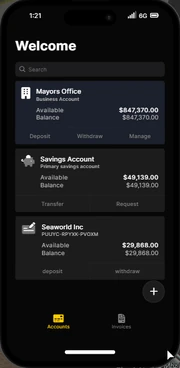
Phone Banking offers a convenient and straightforward way for players to manage their finances in NuLife RP. Here's how you can access and use Phone Banking:
1. **Access Phone Banking:** Press the **'M'** (default) key to open your in-game phone. Once your phone is open, click on the **NuBank** app. This will display information related to your bank accounts.
2. **Transfer or Request:** When viewing your bank accounts, you will have two primary options: Transfer and Request. Selecting either of these options will prompt a small pop-up box on your phone.
3. **Initiating Transactions:** To transfer money to another player, enter their player ID in the first box of the pop-up and specify the amount you wish to send. Likewise, if you want to request money from another player, enter their ID and the desired amount in the pop-up box.
4. **Confirm and Complete:** After entering the necessary details, confirm your transaction by clicking the appropriate button. Once confirmed, the transfer or request will be processed.
A friendly reminder to double-check the recipient's ID when conducting transactions to ensure the funds reach the intended player. Avoid accidentally sending money to the wrong person, as there may be mischievous individuals trying to request money from you.
The Main Phone Banking Interface
## Fleeca Banking
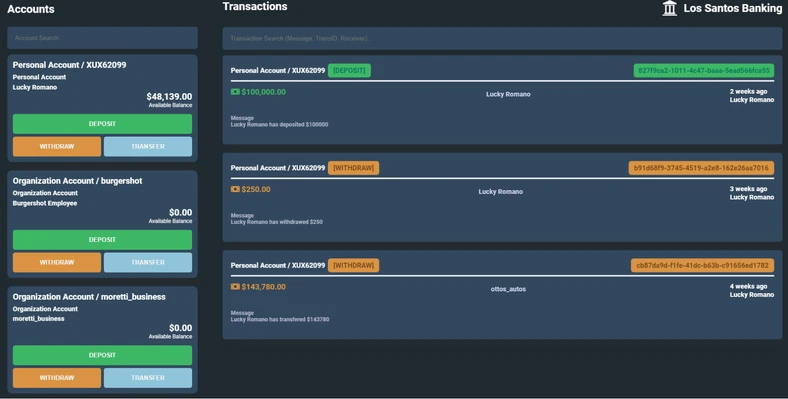
At Fleeca banks in **NuLife RP**, you'll encounter a different interface when using the bank teller. This interface allows you to perform various banking transactions. Here are the straightforward options available:
1. **Deposit:** Use this option to deposit money into your bank account. Whether you've earned some cash from your adventures or you want to keep your earnings safe, the deposit feature provides a secure way to store your funds.
2. **Withdraw:** When you need to access your money for purchases or other purposes, select the "Withdraw" option. This enables you to withdraw funds from your bank account, giving you the financial freedom to make in-game purchases and engage in various roleplay activities.
3. **Transfer:** The "Transfer" option allows you to move money from your bank account to another player's bank account. This comes in handy when collaborating with others, paying for services, or supporting friends in their endeavors.
The Fleeca Bank Interface
## Invoices
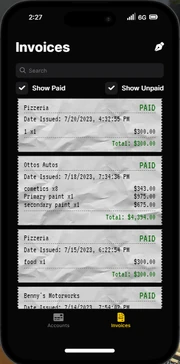
In **NuLife RP**, invoices are an essential tool used by businesses to charge for their services. Accessing your invoices is straightforward:
1. **Open Your Phone:** Press the **'M'** (default) key to open your in-game phone.
2. **Navigate to NuBank App:** Within the phone menu, locate and select the NuBank app.
3. **Go to Invoices Tab:** Once inside the NuBank app, click on the Invoices tab, which is positioned at the bottom right corner of the screen.
4. **Manage Invoices:** In the Invoices tab, you can view all your current unpaid invoices. Additionally, you have the option to create a new invoice if you are associated with a business or you can check your paid invoices.
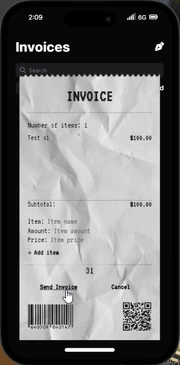
5. **Create an Invoice:** To create a new invoice, click on the pen icon located in the top right corner. This will initiate the process of filling out the required fields to generate an invoice.
6. **Fill in the Fields:** In the fields provided for the new invoice, you'll notice a box labeled "Number." Here, you should input the player's ID to whom you wish to send the invoice, as explained [here](https://nulife-rp.gitbook.io/guide/overview/accessing-player-ids).